
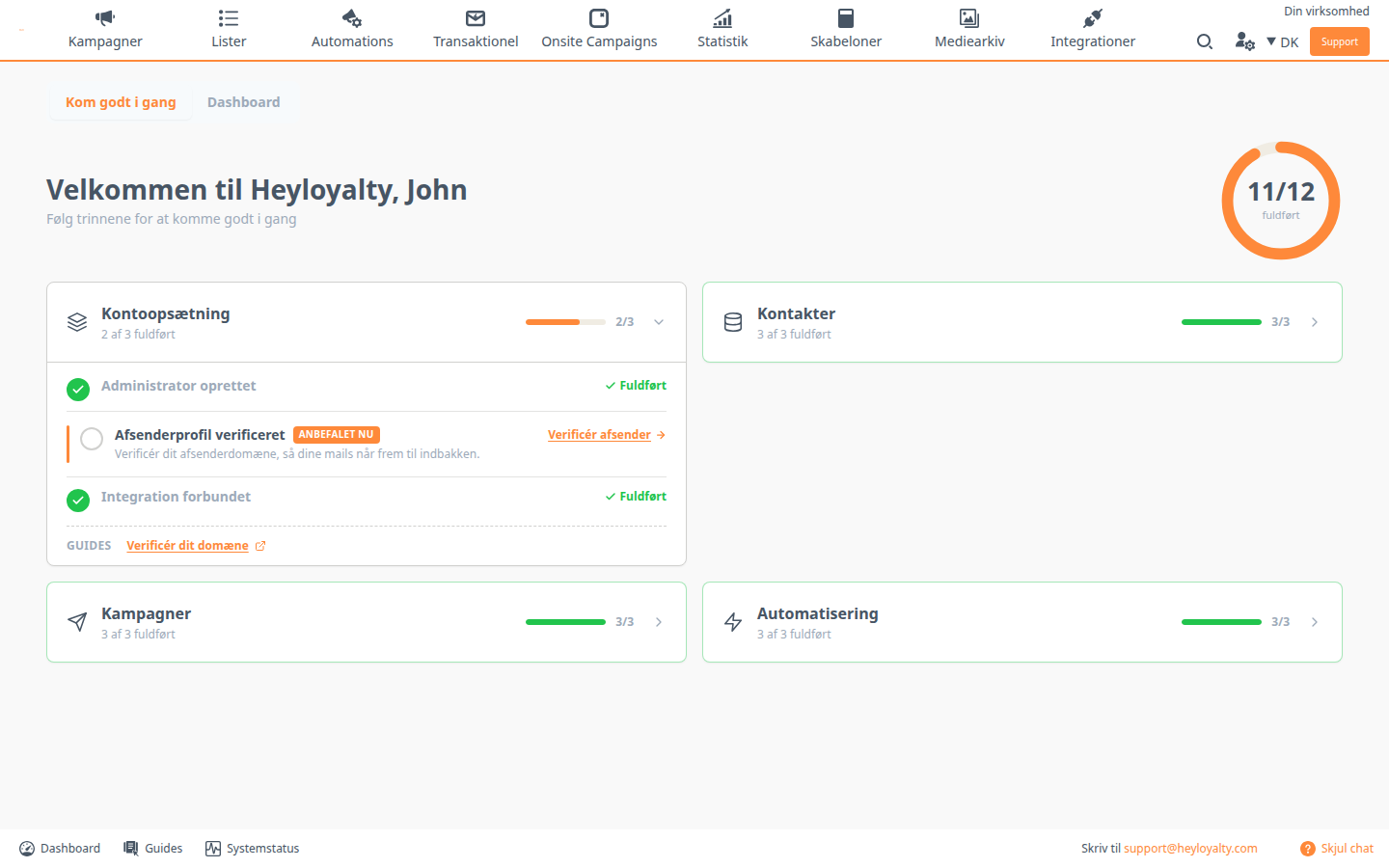
When your Heyloyalty account is new, the dashboard opens on Getting started. It shows the 12 steps to put in place before you send campaigns and flows to your contacts, and which of them you have already done.
In this guide, you see what the overview shows, what completes each step, and what happens when every step is complete.
Find Getting started
Getting started is on the dashboard, the page you land on when you log in. You get back to it by clicking Dashboard in the bottom-left corner.
At the top of the dashboard, you switch between two views:
- Getting started: your steps and how far you have come.
- Dashboard: Quick stats for the current month, News and Our blog posts.
Your browser remembers the view you chose last and opens it next time.
How to read the overview
At the top is a welcome with your first name and a ring that shows how many of the 12 steps you have completed, for example 11/12. The steps are split into four cards:
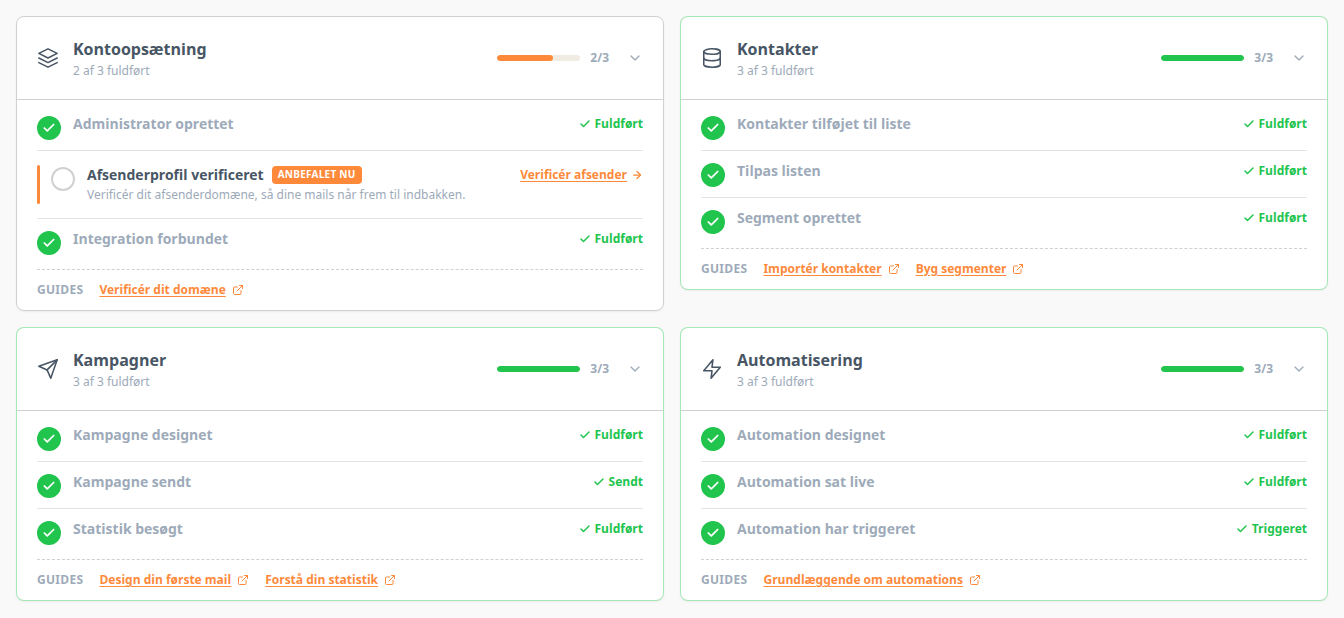
- Account setup: users, sender profile and integration.
- Contacts: contacts on a list, custom fields and segments.
- Campaigns: your first campaign, sending it and its statistics.
- Automation: your first flow, from creating it until it sends.
Each card shows how many of its steps you have completed. Click the card’s heading to show or hide its steps. Cards where every step is complete start out collapsed.
A step you haven’t done yet has a short explanation and a link to the page where you do it. A completed step has a green check mark and the text Done.
One step at a time is marked Recommended next. It is the step worth doing next. At the bottom of each card, Guides links to guides on the topic.
The 12 steps
Heyloyalty checks the steps every time you open the dashboard. You don’t mark them yourself, except Integration connected.
Account setup
- Administrator created: Complete when the account has at least one user. This step is usually complete already the first time you log in. You add colleagues by clicking the user icon with the gear in the upper-right corner and selecting User management. See Create a user and manage account users.
- Sender profile verified: Complete when one of your sender profiles uses a verified domain. The Verify sender link opens Sender profiles. See Sender profile.
- Integration connected: Complete when the account has an active integration. The Connect integration link opens Integrations.
If you don’t use an integration, click Mark as completed or the circle next to the step. If you marked the step by mistake, click Undo. Hover over Undo to see who marked the step, and when.
Contacts
- Contacts added to a list: Complete when at least one of your lists has an active contact. The Import contacts link opens Lists. See Importing and exporting contacts.
- Customise your list: Complete when one of your lists has at least one custom field. The Manage fields link opens Lists. See Lists and fields.
- Segment created: Complete when you have created a segment on one of your lists. The Manage segments link opens Lists. See Simple segmentation.
Campaigns
- Campaign designed: Complete as soon as you have created a campaign. It doesn’t have to be sent. The Create campaign link opens a new campaign in a new tab. See Create campaign.
- Campaign sent: Completes automatically when your first campaign has been sent, and then shows Sent. Until then, it shows Sends when scheduled. If you have scheduled a campaign for later, it shows the date instead, for example Sends 3. November 2026.
- Statistics visited: Complete the first time you open the statistics for a campaign. The View statistics link opens Campaign statistics, where you choose the campaign. See Campaign Statistics.
Automation
- Automation designed: Complete when you have created a flow. The Create automation link opens a new flow in a new tab. See Create a flow.
- Automation set live: Complete when one of your flows is active, so it runs for new contacts.
- Automation triggered: Completes automatically the first time one of your flows sends to a contact, and then shows Triggered. Test sends don’t count. Until then, it shows Awaiting activation.
When every step is complete
When you have completed all 12 steps, Getting started shows You are all set! the next time you open the dashboard. Click Go to dashboard to see your Quick stats.
Use Getting started as a checklist
You have now seen what Getting started shows, what completes each step, and where you do it.
When all four cards are complete, you have contacts on a list, a sender with a verified domain, a sent campaign and a flow that sends on its own. A welcome flow, for example, sends an email to new subscribers the same day they sign up, while you prepare your next campaign. Afterwards, the statistics show who opened and clicked, so you can decide who your next campaign should go to.